Getting Into 3D Printing via an AI Pipeline: A New, More Accessible Way In
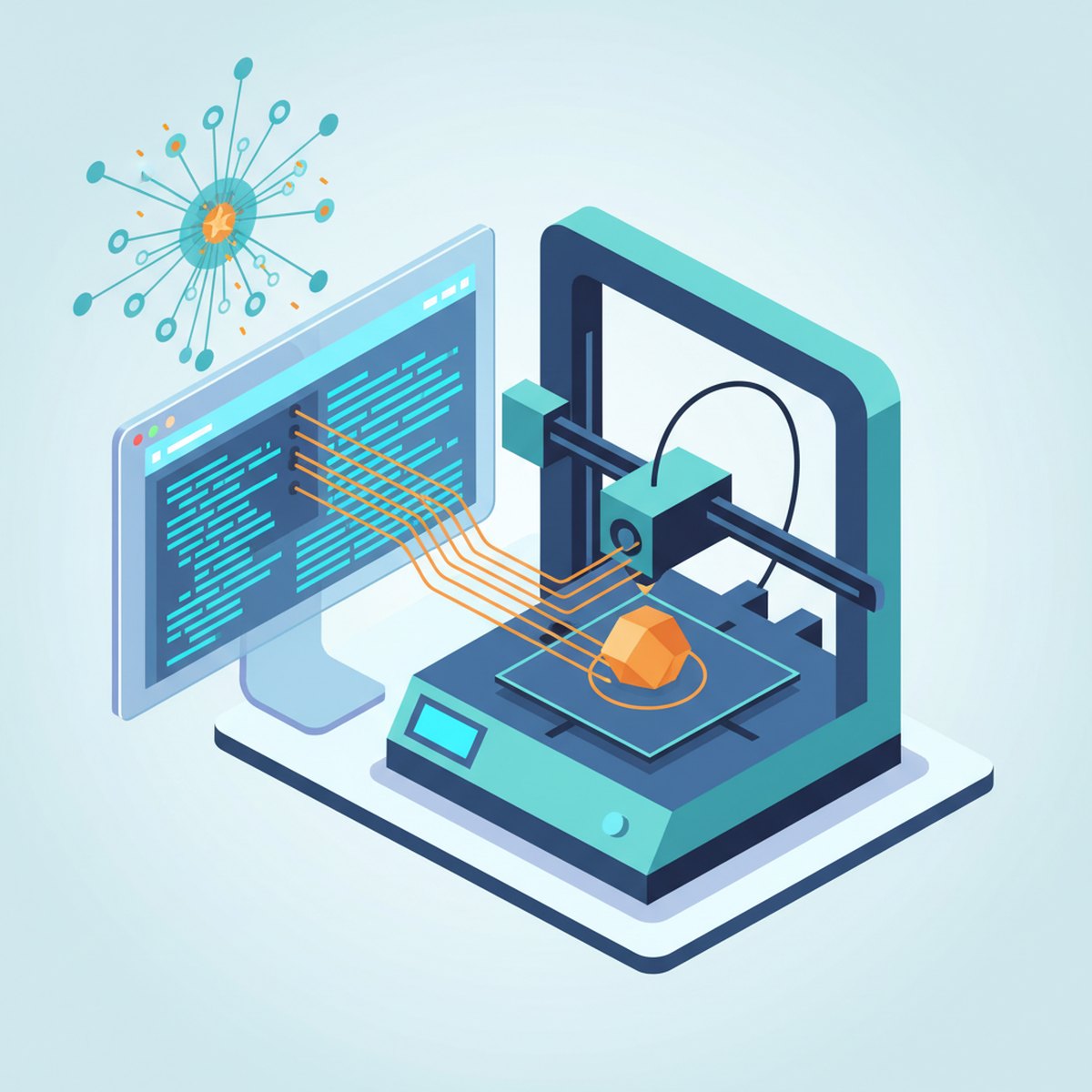
There's a sad pattern in the 3D printing world: most people buy a machine and resell it a few months later. Not because the machine is bad — but because they get stuck exactly where everyone gets stuck. This piece is about that spot, and how AI helps you get past it.
Where most people quit
The typical lifecycle of a 3D printing hobbyist:
Buy machine → excited → download models online → print
   → print a few dozen more → realize they're all generic, everyone has them
   → machine gathers dust → "selling my printer, barely used"
The problem isn't the machine. It's that the hobbyist stays stuck on the consumption tier and never climbs to the creation tier.
| Tier 1 — Consumption | Tier 2 — Creation | |
|---|---|---|
| What you do | Download ready-made models → print | Design things that solve your own problems |
| Source of projects | Finite, generic, everyone has the same | Infinite — your own life generates them |
| Nature | Toys, decoration | A personal manufacturing tool |
Between the two tiers stands a wall: to design your own, the old way meant learning CAD (Fusion, Blender...) for months before you could even draw a simple bracket. Most people hit this wall and turn back.
AI tears down the wall
Here's what changes everything: AI turns "idea → printable object" from a months-long skill into a few-minute command. You describe the parameters, AI generates the CAD code:
"A wall mount for a router, two screw holes 60mm apart, 4mm screws, holds 300g" → AI writes the code → out comes a printable STL file.
Because it's code, it has exactly what a developer wants: true parametrics (change one number → get a variant, no redrawing), version control, reproducibility.
A lean pipeline for developers: do it all in the terminal
For a developer, this is a lean approach — describe it in words, and minutes later you're holding the real object, without leaving the terminal:
   cadcode        →      gcode        →     bambu-labs
   describe → CAD       STL → G-code        send print job
   (CadQuery)           (via slicer)        (over LAN)
       │                                         │
       └──────────── cad-viewer ─────────────────┘
                  preview .step/.stl/.gcode
The real-world loop:
1. Hit a real problem → measure with calipers
2. Describe to the AI: dimensions, constraints, load
3. AI generates CAD code → STL  (cadcode)
4. Preview → if off, fix the prompt, repeat  (cad-viewer)
5. Slice → print  (gcode → bambu-labs)
6. Hold the real part → re-measure → iterate
7. Commit the code. Next time you need a variant, just change a parameter.
Notice: this is exactly the dev loop — spec → build → test → iterate → commit. You're not learning a new hobby from scratch; you're applying your existing engineering mindset to a physical domain.
Why this approach never gets boring
The key is the source of projects:
- Tier 1 pulls projects from other people's model libraries → finite, generic.
- Tier 2 pulls projects from your own life → infinite, unique.
Your keyboard lacks a wrist rest at exactly your height → measure, print. A drawer needs a divider sized to your specific bundle of cables → print. Every problem in your life = a project. And life never runs out of problems — so people on Tier 2 never post "selling my machine." Their machine is a tool, not a toy.
One caveat: AI is scaffolding, not a crutch
Early on, let the AI generate everything, print it, tweak the prompt — the goal is just to start. Later, read the code the AI writes, understand why it set the parameters the way it did, then edit it yourself, write it yourself. Use AI to go faster, not to replace your brain. Scaffolding helps you build tall — but once the building is up, you take the scaffolding down, otherwise all you have is scaffolding.
The takeaways
- Most people quit 3D printing because they're stuck on the download-and-print tier — quick to bore.
- The design-it-yourself tier is endlessly rewarding, but it's blocked by the CAD wall.
- AI tears down the wall — idea to object in minutes.
- A lean pipeline for devs: cadcode → gcode → bambu-labs, all in the terminal.
- The source of projects is your own life → it never runs dry.
3D printing isn't about printing pretty toys. It's a personal manufacturing workshop on your desk — and the AI pipeline is the key that opens that door from week one.
Appendix: Getting-started steps for beginners
If you've never touched 3D printing, here's the minimal path from zero to holding a real object — and then straight up to Tier 2.
Step 0 — Setup (one time)
- Printer: a plug-and-play machine (Bambu A1 for beginners, or P1S if you need functional parts / engineering materials). New models barely need any bed leveling by hand.
- Material: start with PLA — easiest to print, not fussy about temperature. (PETG when you need more durability.)
- Minimum tools: flush cutters, needle-nose pliers for removing supports, and calipers — the single most important item for reaching Tier 2, because every design starts from a measurement.
Step 1 — Print your first batch to get the feel
- Assemble the machine per the manual (remove all the shipping screws!).
- Print the Benchy file built into the machine (~20 min) to confirm it runs well.
- Download a few models from MakerWorld / Printables → print. The only goal here is to get familiar with the loop: pick file → slice → print → remove part.
This is Tier 1. Fun, but don't stop here — most people quit because they get stuck right at this point.
Step 2 — Understand the 3 things you must set correctly when slicing
Open Bambu Studio (or OrcaSlicer), and every time you print, double-check: 1. Correct machine (A1 ≠ A1 Mini ≠ P1S). 2. Correct nozzle size (0.4mm is the default). 3. Correct filament type actually loaded in the machine.
Grasp 3 basic parameters: layer height (0.2mm), infill (10–20%), support (turn on when there are overhangs / floating parts).
Step 3 — The leap to Tier 2 (where the AI pipeline comes in)
This is the step that turns 3D printing from a toy into a tool:
1. Pick one small, real problem at home (a shelf, a divider, a missing bracket).
2. Measure with calipers, write down the dimensions + constraints.
3. Describe it to the AI → let the cadcode → gcode → bambu-labs pipeline generate the model, slice it, and print it.
4. Hold the real part → re-measure → fix the prompt → reprint. Repeat until it fits.
5. Save the code to git. Next time you need a variant, just change a parameter.
Step 4 — Habits so you don't end up "selling the machine"
- Solve one real problem each week with a print you designed yourself.
- Maintain regularly: clean the build plate every 2–3 days, don't touch the plate surface (skin oil makes parts pop off).
- Store filament in a sealed bag with desiccant (damp filament → failed prints).
- When something breaks: describe it using 4M (Machine / Material / Method / Man), then check the vendor wiki or ask an AI.
Tip: don't try to learn CAD formally before you start. Do real projects with AI from day one — the CAD knowledge will sink in naturally each time you read the code the AI generates.